From mess to method
Photograph the mess.
Get the plan back.
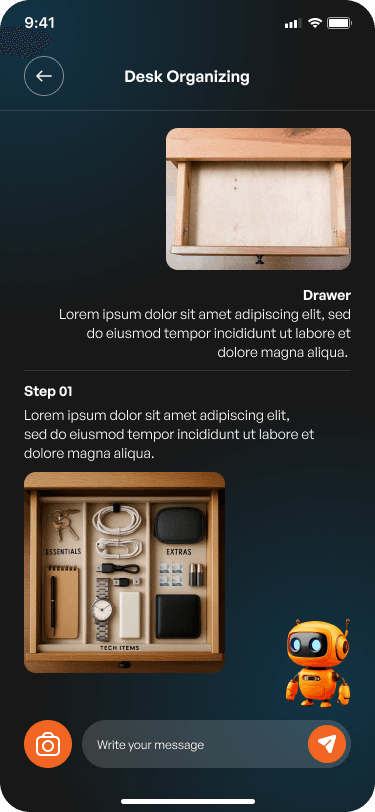
Point your camera at a drawer, cabinet, wardrobe, or cupboard. Dejumblefy reads what is actually in there and returns a layout built around it — with the trays, dividers, and bins that fit the space.
Drawers · Kitchen cabinets · Wardrobes · Bathroom cupboards

Four categories
Drawers, cabinets, wardrobes, cupboards
Two answer types
A layout mockup or a written guide
Products included
Matched to your dimensions and materials
Four steps
Camera to cabinet plan, in about a minute.
Every step exists because it changes the answer. Nothing here is a form for the sake of a form.
- 01
Snap it as it is
Take a live photo of the space. No tidying first — the mess is the input.
- 02
Say what it is
Drawer, kitchen cabinet, wardrobe, or bathroom cupboard. The category changes the advice.
- 03
Add the measurements
Length, width, depth. Then colour and material if you have a preference — or skip both.
- 04
Get the layout
A visual mockup or a step-by-step guide, plus the exact bins and dividers that fit.
What it does
It reads your shelf, not a stock photo of one.
Generic organizing advice tells you to buy drawer dividers. Dejumblefy tells you which ones, how many, and what goes in each.
A plan built from what is in the photo
The AI looks at the objects you own and the space you gave it, then returns either a visual layout mockup or a written step-by-step guide — whichever explains that particular space better.
- Drawers
- Kitchen cabinets
- Wardrobes
- Bathroom cupboards
The bin it recommends is the bin you can buy
Every suggestion carries matching products from trusted retailers. One tap opens the listing on their site.
Bamboo divider set
Fits 18″ drawer
Stackable mesh bins
Set of 6
Slim velvet hangers
Wardrobe
Every project stays put
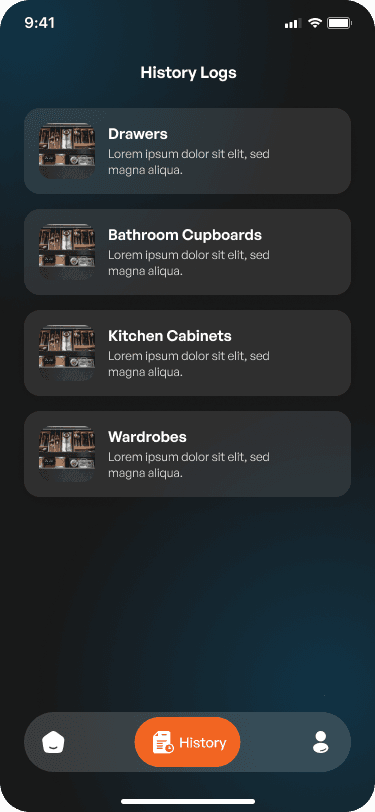
Uploads and suggestions are kept as a thread you can scroll back through, re-read, or run again with a new photo.
Tell it you like walnut
Set a colour scheme and preferred materials — wood, metal, eco-friendly — and the suggestions stop fighting your kitchen.
Ask it a second question
The result is a conversation. Send another photo mid-project or ask what to do with the drawer of cables you forgot about.
Inside the app
A camera, a thread, and everything you have already fixed.
A few of the screens you will spend time in. There is more to the app than fits on one page — sign-up and recovery, capture and category, dimensions and preferences, notifications, referrals, and settings.


Questions
Before you download.
Anything else, write to hello@dejumblefy.com.
Do I have to tidy up before I take the photo?
No. The photo is the input — a cleared drawer tells the AI nothing about what you own. Shoot it exactly as it is.
What kinds of spaces does it handle?
Drawers, kitchen cabinets, wardrobes, and bathroom cupboards. You pick the category before uploading, and the advice changes with it — shelf depth and what belongs at eye level are not the same in a wardrobe and a bathroom cupboard.
Can I upload a photo from my camera roll?
Organizing starts from a live camera capture, so the AI is working from the space as it stands right now rather than a photo from three months ago.
Where do the product links go?
Out to trusted third-party retailers, opened in their own app or browser tab. Dejumblefy does not handle the order itself.
What happens to my uploads?
They stay in your history log so you can revisit a project, re-read the steps, or run the same space again after you have made changes.
Does it work in a dark room or a deep cupboard?
Give it as much light as you can. The AI is reading the objects it can see, so a shadowed back corner is a corner it cannot plan for.
From mess to method
Start with the drawer you have been avoiding.
One photo and about a minute. Start with the drawer, work out to the cupboard, and let the history log keep track of what you have already sorted.